Using AI to Defend Against AI Threats: Building Brew Updates
Almost every day there's a new story about an organization dealing with a data breach or an outage. The question isn't whether the threats are growing. It's what you do about the systems you control.
A large part of the increase is driven by how quickly AI is advancing: attackers are finding and exploiting weaknesses faster than ever. So what are you supposed to do about it? My answer is to use the same technology on the defensive side. Use AI to build your own security tooling, and use it to protect your own systems.
That's the story behind my first macOS application, Brew Updates, which I'm releasing today.
Why a Mac, and Why Homebrew
Years ago I switched to the Mac. I was drawn to the combination of the Unix command line, the performance, and the polish of the macOS interface. It's a rare mix: a real terminal and a desktop that gets out of the way.
As a Mac user and developer, I adopted Homebrew as my default package manager for every command-line and development tool on my local machines. Its robust command line makes installing and updating software simple, and it's one of the best ways for any Mac developer to build and manage a local development environment.
Alongside Homebrew, I wrote a set of shell scripts to manage what I had installed and to apply updates as they became available. They worked well for a long time.
The Wake-Up Call
Recently I'd become more and more concerned about the command line tools I'd collected over the years of testing and evaluating things. Then came the eMudhra certificate incident, and I knew I had to step up my security posture for those tools.
Apple and others shipped updates quickly, but Apple's blocks cover Safari, Mail and apps that use its frameworks. Command-line tools that read the system certificate file were still exposed. brew doctor flagged it and printed Apple's mitigation. Because Brew Updates runs brew doctor on every scheduled run and keeps the result in its Doctor screen, I saw the warning there, ran the suggested commands, and the next run came back clean.
The same can't be said for the third-party tools in my Cellar. They carry their own dependencies, which no operating system update touches. A patched operating system doesn't mean a patched toolbox.
From Shell Scripts to an App
I wanted to make better use of the data my scripts were already collecting, and add software scans across everything installed in my Homebrew Cellar. The result is Brew Updates: a native UI wrapped around my existing Homebrew command-line functions, with a built-in scheduler and Grype vulnerability scanning. The source is on GitHub.
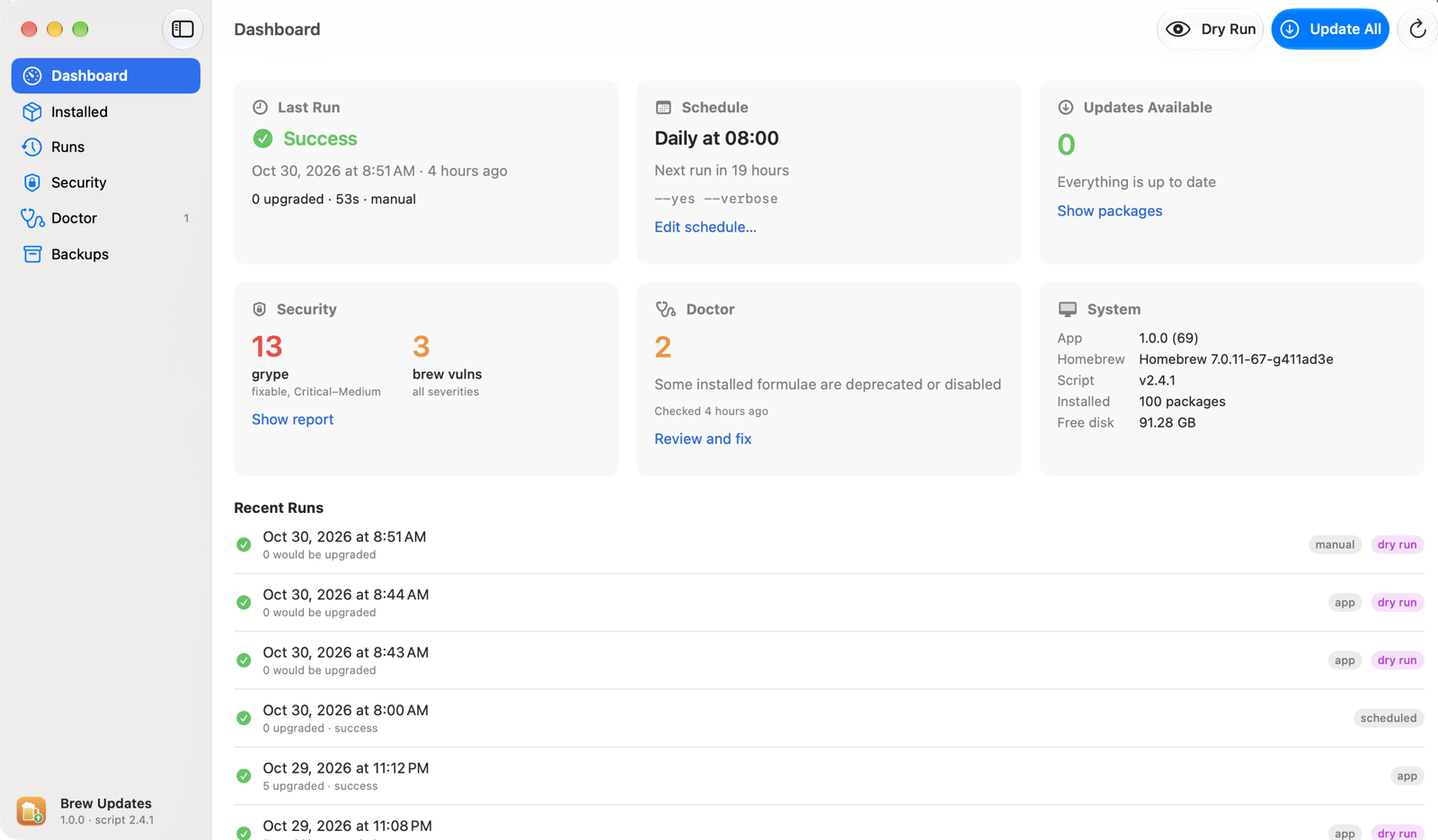
With it, you get:
- Unattended updates on a schedule you choose, with pinned and excluded packages left alone
- A backup before every run, so you can compare against what's installed and restore what went missing
- Vulnerability scanning of what's installed, with a trend over time
- A health check from
brew doctor, with plain-language advice
The point is visibility. Once you can see everything you've deployed with Homebrew, you can make informed decisions: remove the old, unsupported application, or the one you tested once and haven't touched since.
What the Scan Found
On my own machine, I found two applications that had been discontinued. Removing them took my findings from 482 down to 67 overnight, and critical findings from 49 to 3. A few upgrades later I was at zero criticals. Two tools I wasn't using, doing nothing but adding risk.
New advisories keep arriving, so the count creeps back up over time. That's exactly why the scan runs on a schedule.
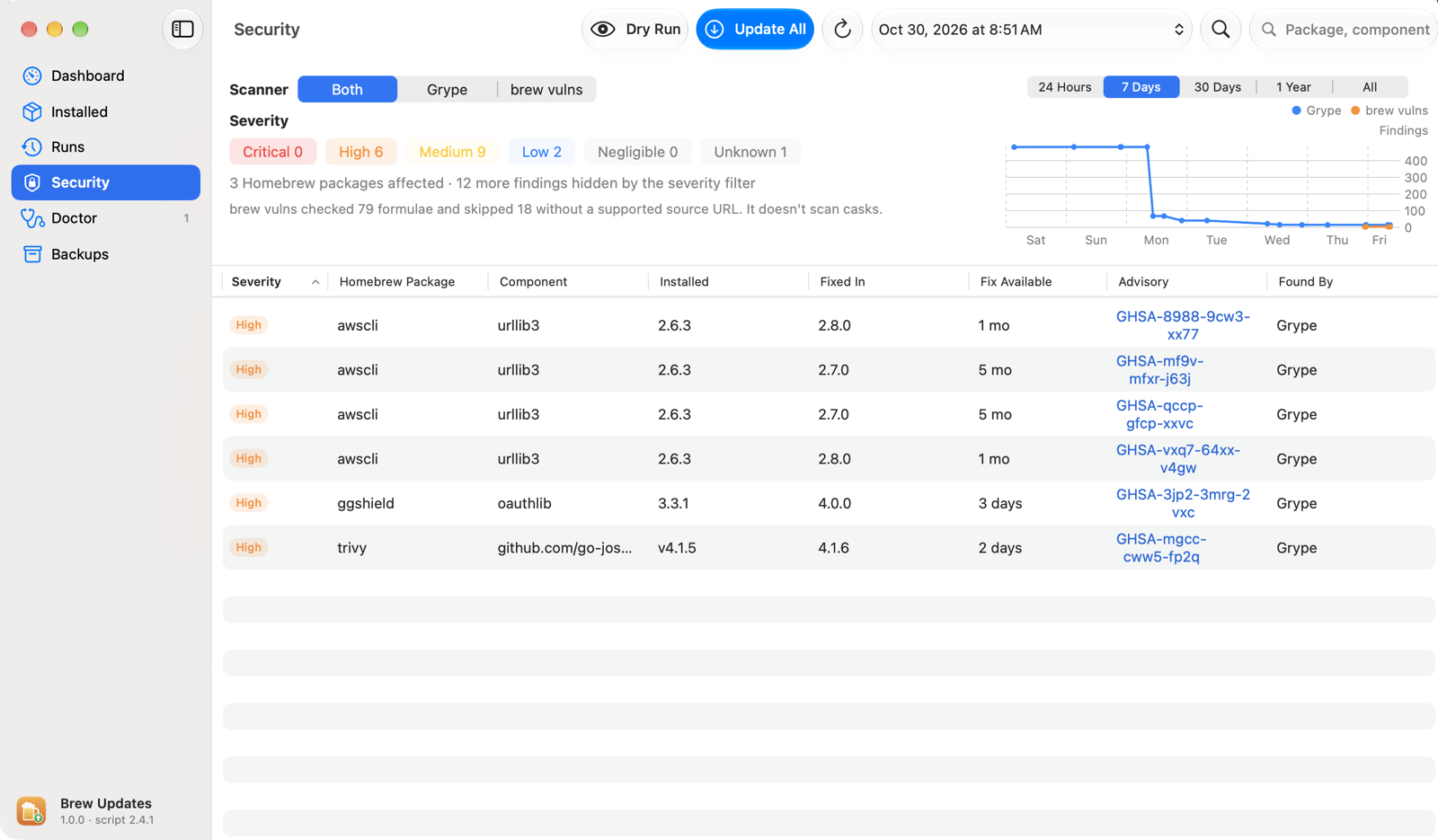
The Security screen: findings by severity, a trend over time, and the Homebrew package behind each one.
What I Learned Along the Way
Most of my development work is in web development and cloud architecture, so building a native Mac app with SwiftUI was a great opportunity to learn something completely new. It's a different language, a different toolchain, and a different way of thinking about an application.
I learned how a SwiftUI application is structured, how the Apple Developer program works, and what it takes to publish an app that's signed with a Developer ID and notarized by Apple, so it opens on any Mac without a warning. Claude Code was a big part of that, from the Swift code to the release tooling.
I don't expect everyone to go build their own apps with AI. But I do encourage everyone to have the conversation: ask an AI how you could improve the security of your own system, and how to better protect yourself from the next vulnerability or hack.
What's Next
Now that I have my Apple Developer ID, I'm thinking about an iOS game. It would be a good distraction from the end-of-year and holiday rush. I recently heard about Krillion from my college-age niece, a daily game that, as I understand it, was built by a single young developer and plays to a huge audience. Who knows, maybe I can create the next one in my free time.

Brew Updates is free for Apple silicon Macs running macOS 15 or later. Get it from the product page or the latest release, or install it with Homebrew: brew install --cask jxman/tap/brew-updates. The source is on GitHub.